Sign In
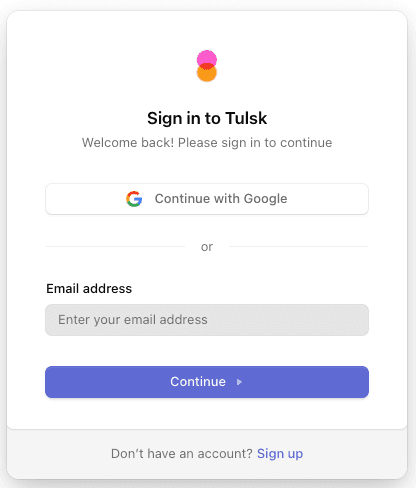
Sign in at tulsk.io/sign-in with the same method you used to create your account — email and password, or a configured social provider.
Where You Land After Sign-In
Tulsk routes you based on your account state:
| State | Destination |
|---|---|
| You belong to one or more workspaces | Your last-active workspace home (/<workspace-slug>) |
| You have no workspace yet | The /onboarding page to create one |
| You followed a deep link before signing in | The original URL, once authentication completes |
If you bookmarked a workspace URL and were signed out, Tulsk preserves the target. After sign-in you land on the exact page you tried to open — no need to navigate back manually.
Switching Workspaces
If you belong to multiple workspaces, use the organization switcher at the top of the left sidebar. Switching:
- Reloads the sidebar with that workspace’s projects and agents.
- Scopes billing, members, and usage to the active workspace.
- Does not sign you out — your Clerk session is shared across all workspaces you belong to.
See Workspace → Overview for the workspace model.
Multi-Factor Authentication (MFA)
If you’ve enabled MFA from Settings → Security, sign-in prompts for the second factor after your password. Supported factors depend on what you set up — authenticator app, SMS, backup codes, or a passkey.
Lost access to your second factor? Use a backup code if you saved one. Otherwise contact support — Tulsk can’t bypass MFA from inside the app.
Active Sessions
You can be signed in on multiple devices at once. To audit or sign out remote sessions, go to Settings → Security → Active Devices. Revoking a session signs that device out immediately.
If you suspect your account is compromised, revoke all other sessions and change your password from Settings → Security. Sessions cannot be silently extended once revoked.
Signing Out
Click your avatar in the bottom-left of the sidebar → Sign out. This ends the current device’s session only — other devices stay signed in until they expire or you revoke them.